
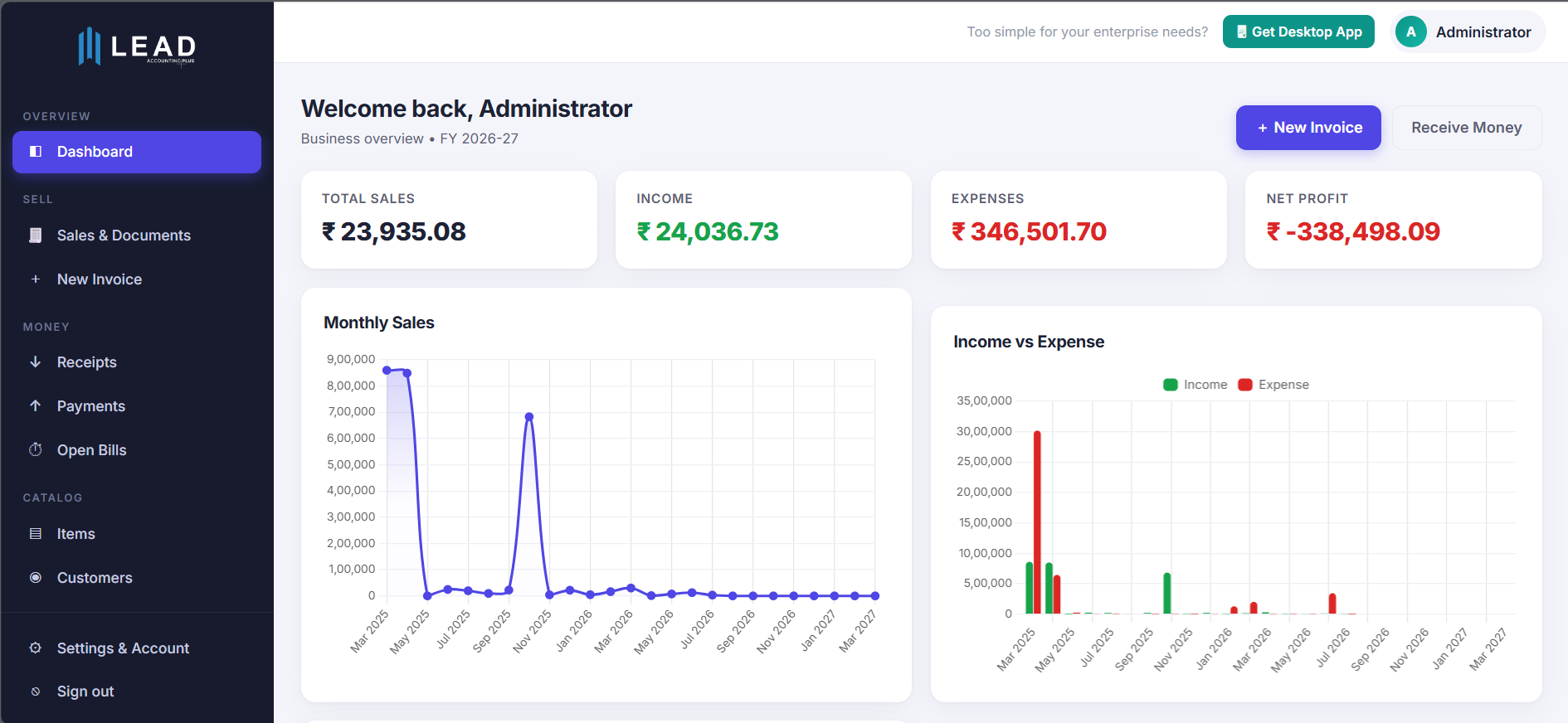
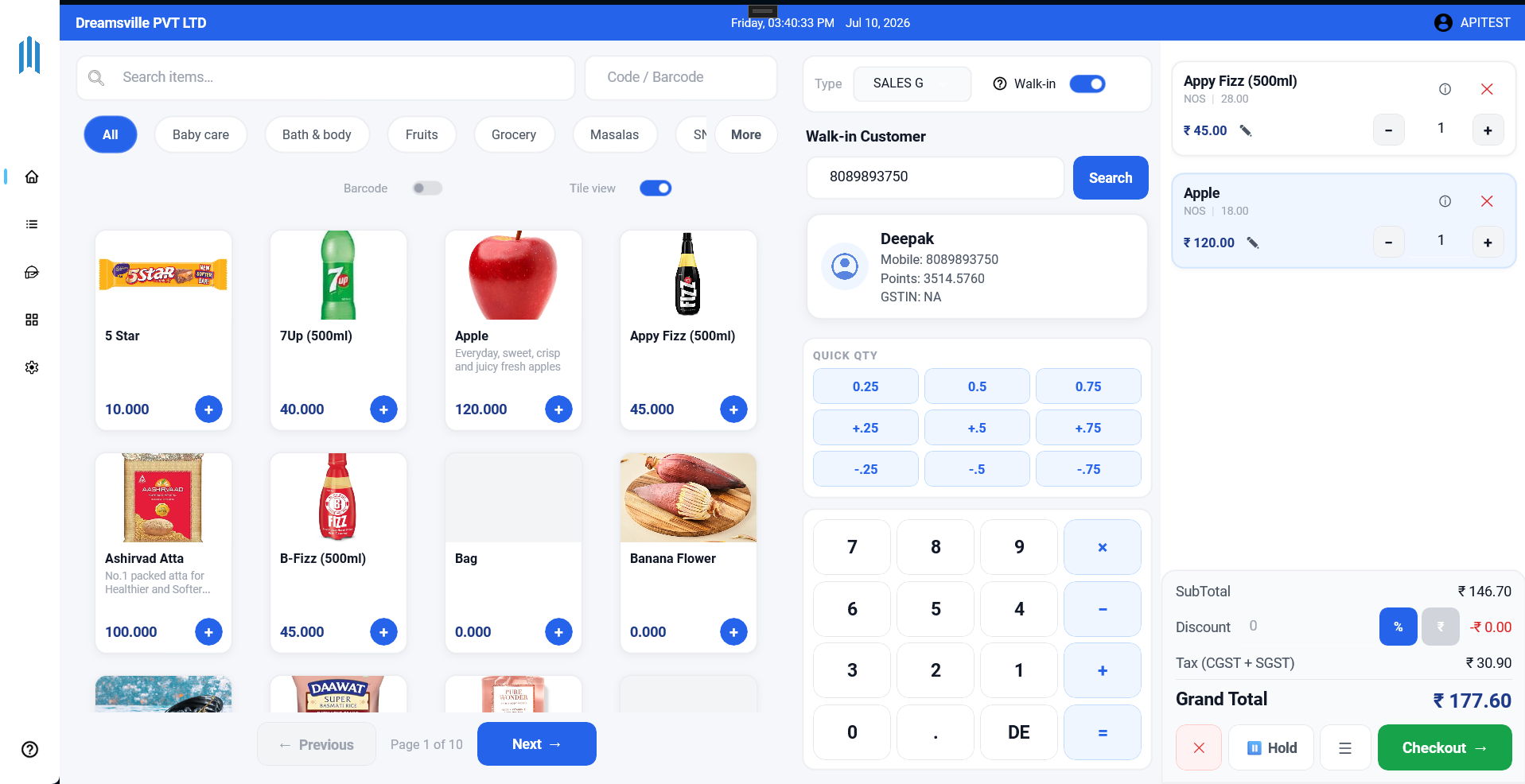

Lead Accounting Plus works inside Claude through the Model Context Protocol (MCP). Ask Claude about your business (sales, stock, receivables, profit) and let it create invoices, receipts, accounts and items against your live LEAD data.
1. In Claude, open Settings → Connectors → Add custom connector (or find “Lead Accounting Plus” in the Connectors Directory once listed).
2. Enter the server URL:
https://mcp.leadaccounting.in/mcp
3. Click Connect. A LEAD sign-in page opens.
4. Sign in with your Company ID, Company Key, User ID and password.
5. Done. Ask Claude something like “What were my top 5 selling items last month?”
“Session expired”: sign in again from Claude's connector settings. LEAD allows one active session per user, so logging in elsewhere ends the previous session.
Connection fails: confirm your subscription is active and the Company ID/Key are correct.
For anything else, see our support page.
See also: Connector privacy policy · About AI & MCP in LEAD · Support